Getting your design system guidelines into AI apps should take less setup, and it should be easier to see what those apps receive. Our latest UI Rules updates focus on both: simpler connections, clearer style imports, and more ways to check that your project's tokens arrived as expected.
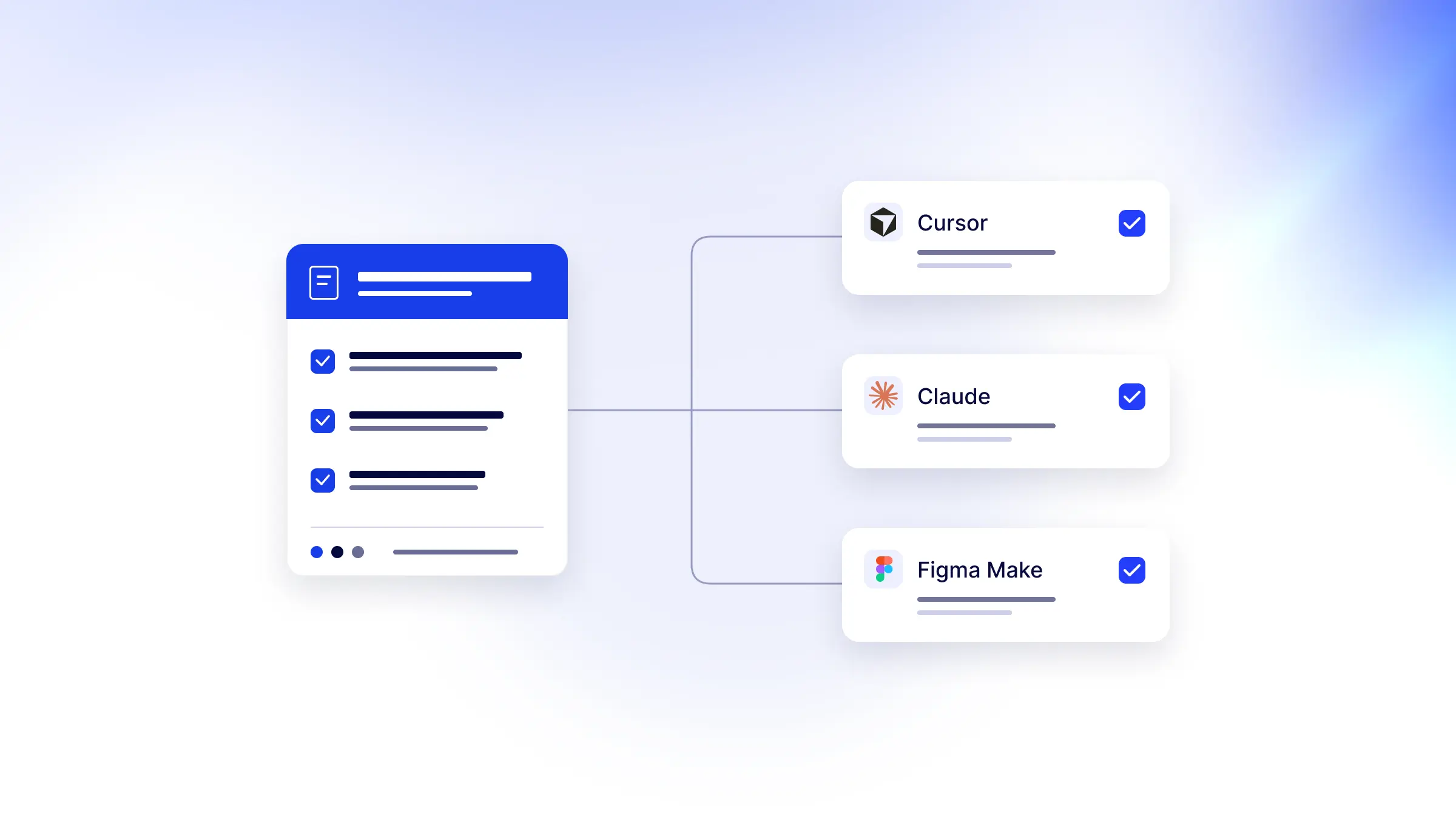
These changes help you bring your brand's styles and guidance into Cursor, Claude, Codex, Figma Make, v0, and Lovable. Here's what's changed and how it helps when you're building with AI.
Connect your AI apps with fewer manual steps
You can now approve connections for supported tools in your browser without copying an API key into a configuration file. The approval screen names the app requesting access and lets you choose the project, so you can see what you're connecting before you approve it.
Creating a project opens Connect, putting tool setup within reach as soon as you're ready to build. Updated guides take you through the connection and finish with a check inside your AI app.
The Connect dialog includes installation links for Cursor and VS Code, a prefilled Claude connector form, and instructions for the other supported tools. Use the guide for your app:
- Connect Cursor to your design system
- Connect Claude to your design system
- Connect Codex to your design system
- Add design system guidelines to Figma Make
- Connect v0 to your design system
- Connect Lovable to your design system
Finish with the connection check in the guide. Confirm that the AI app can reach your project before asking it to build with your guidelines.
Import your styles knowing what will change
Bringing existing styles into UI Rules is easier to review. Token import reports now separate matching tokens from changed values, showing what will change, what stays the same, and which values are unsupported. You can check the impact before applying an import.
At the project level, values that match your brand stay inherited. That keeps overrides focused on deliberate differences and lets those inherited values follow future brand updates.
The Figma plugin also supports browser approval using a short device code. Choose your brand, select variable collections, and preview the changes. Improvements to variable mappings and connection status make it easier to see how your Figma file connects to your brand.
For teams using shadcn, you can paste components.json to record settings
such as style, base color, icon library, and RTL configuration. Your theme
values, fonts, and radius stay as they are because that file does not
contain them.
See the Figma plugin guide and style import options.
Keep design guidance easier to find and maintain
Your AI apps need the decisions around your styles too: which icons to use, how a logo should appear, and which component or content rules apply to a screen.
The dedicated Iconography page brings your icon library, setup snippets, and usage rules together. Logo usage rules sit with your brand assets. A more consistent rules editor across style and library pages makes it easier to organize related guidance into named groups.
Rule details now show their creator and last editor, with clearer context for project overrides. When guidance does not apply to a particular project, you can hide a whole group and its child rules together. Starter pack previews also let you read the guidance before adding it.
These changes help your team review and maintain the guidelines your AI apps retrieve as your design system grows.
Learn more about organizing rules and project overrides.
Check that your design tokens reach the project
Connected AI tools can now request compiled token exports for CSS, Tailwind v4, or Tailwind v3. They receive a stylesheet and, where needed, the configuration for the project. Exports also respect a project's pinned version, keeping its tokens aligned with the version you've chosen.
Tools can submit a stylesheet for comparison against the canonical export. That gives you a concrete check of whether the expected styles reached the project.
After a clean Tailwind v4 delivery, the compliance report prompts the AI tool to run the project's token-usage linter, or ask before setting one up. The stylesheet comparison checks delivery; the linter checks usage in code. Behavior and accessibility still need review as part of the finished interface.
Project overviews and version-history indicators make it easier to see what is being delivered. Activity identifies Agent changes separately from changes made by people, and project notes are kept by source so one codebase's notes do not overwrite another's.
Try the updates on your next AI build
Open Connect for an existing project, choose your AI app, and run the connection check. Then ask it to retrieve your design system guidelines and tokens for its next task.
The connection guides cover setup for each app. For the full list of recent changes, including workspace appearance and account improvements, read the UI Rules changelog.