You've already chosen your brand's colors, typefaces, and spacing. When you build with an AI tool, you want to use those same choices without having to describe them again in every project.
UI Rules makes your brand styles available to Cursor, v0, Lovable, Codex, Figma Make, and Claude Code. Import them from Figma, paste an existing CSS theme, or use a preset, then connect the apps your team uses. This guide covers those three import methods and how to use the styles in a build.
Prefer to watch? The video covers the same ground.
Design tokens are the values, rules are the guidance
If you've read the rules guide, here's how the two fit. Styles are your design tokens, the actual values: the color of your primary button, your background, your border color, the typeface for body copy and headings. Rules are the brand guidelines that say how those values get used.
A color value tells a tool which color to use. A rule explains where it belongs. Your primary color, for example, might have a rule saying to reserve it for the most important action on the screen. UI Rules lets you keep that guidance alongside the value.
What a new brand starts with
A new brand starts with neutral colors and standard typography. You can use these as a starting point, then replace them with your own styles. Choose an import method based on where your design system lives today.
Import design tokens from Figma
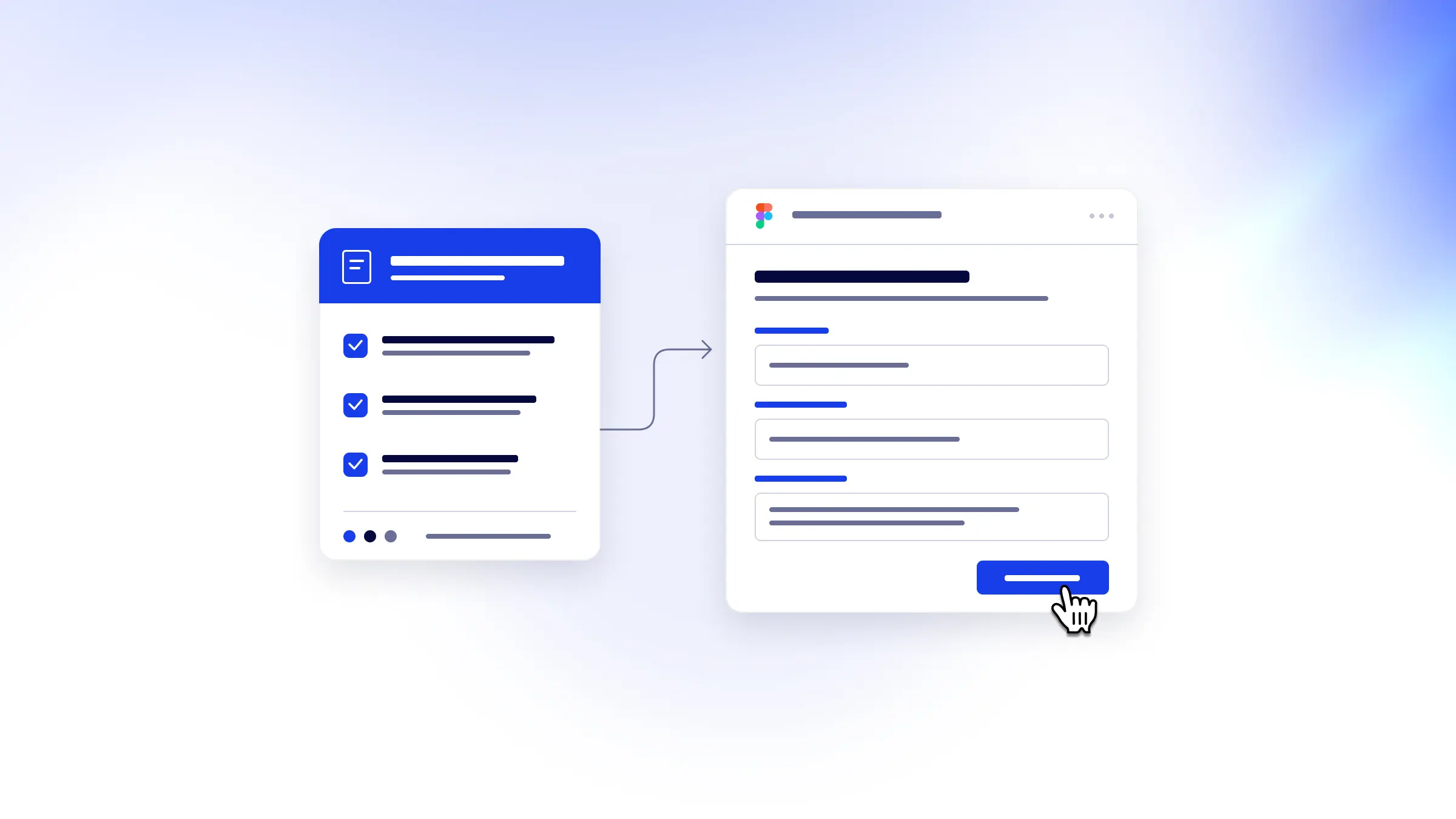
If your colors, spacing, and other styles are stored as Figma variables, you can import them with the UI Rules plugin. Create a Figma key in UI Rules, install the plugin from the Figma Community, and use the key to connect your brand. Choose the variable collections you want to import, review the preview, and apply.
Open your brand in UI Rules to review the imported values. The plugin brings across the collections you selected, including light and dark modes, so you don't need to enter each value by hand.
Paste your CSS variables
If your styles are already in your website's code, ask a developer for the CSS theme and paste it into UI Rules. CSS variables are named values for things such as colors and fonts. If you need to create a theme, tweakcn is a quick way to build a theme: enter your brand values or start from one of its presets, and paste the CSS it produces.
Paste a preset code
A preset is a shareable code for a complete theme. These presets work with shadcn, an open-source collection of interface components such as buttons and cards. You can create one at ui.shadcn.com/create or shadcncraft.com/create, or grab a ready-made one, and paste the code in.
Whichever route you take, UI Rules previews the import before anything is written, so you can see exactly what will change.
Use your styles in a connected AI tool
Connect your chosen app to your brand, then ask it to read your UI Rules styles before building a screen. The same approach works with Cursor, v0, Lovable, Codex, Figma Make, and Claude Code. The worked example uses v0, where the project starts with the brand's colors, typography, and corner radius.
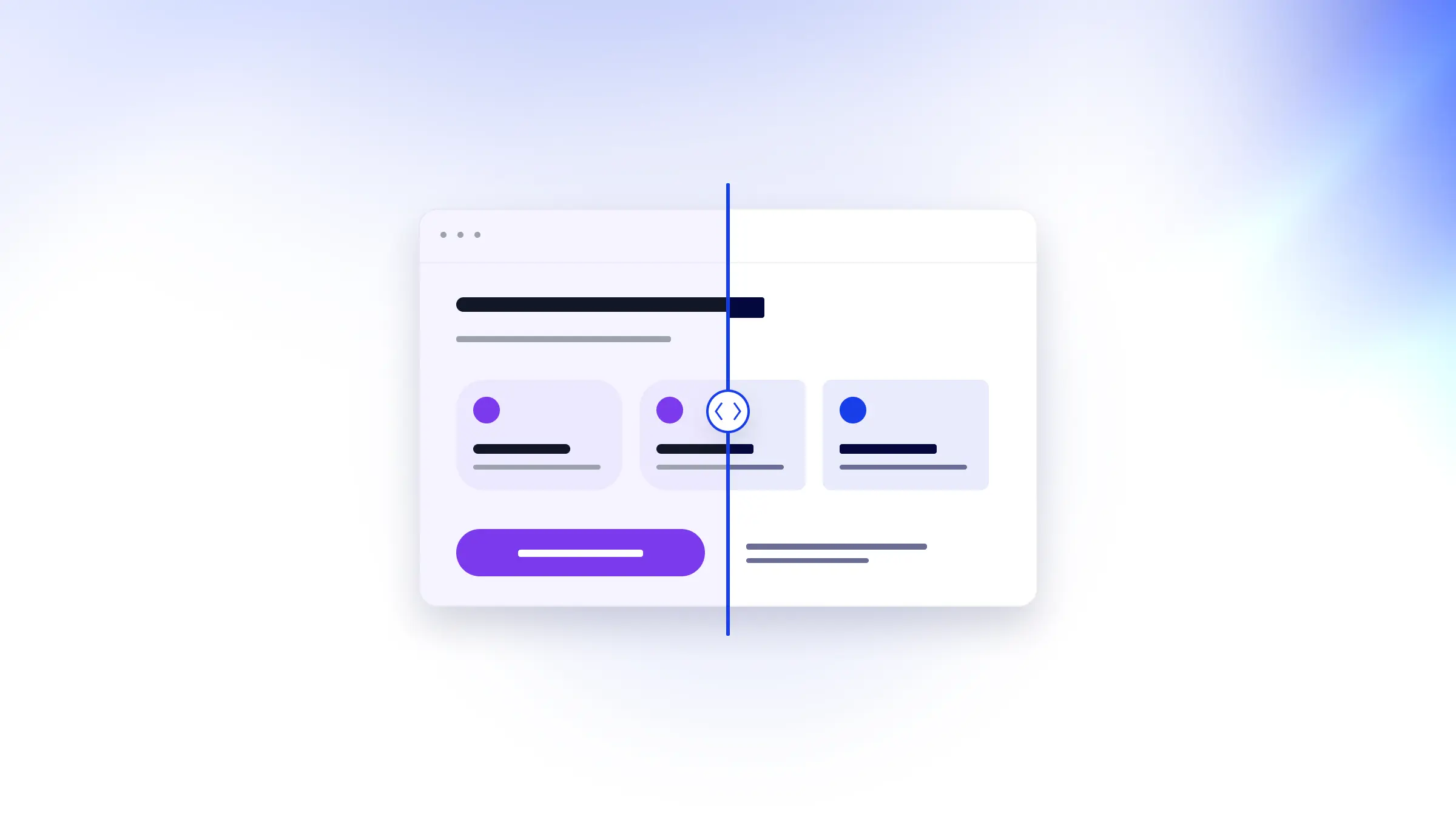
Update a style once in UI Rules, and tools using the live version pick it up on their next build. Your brand stays consistent without maintaining a separate copy for each tool. Existing screens update when your coding tool applies the change.
Start with the styles you already have, then connect the AI app you use most. You can connect more apps to the same brand as your team needs them.